


Read in other languages: English, 中文

Instant file search integration for the Windows taskbar powered by Everything.

EverythingToolbar sits right on your taskbar, either as a real search box you can type into directly on Windows 11, or as a compact icon that opens the search window when clicked.
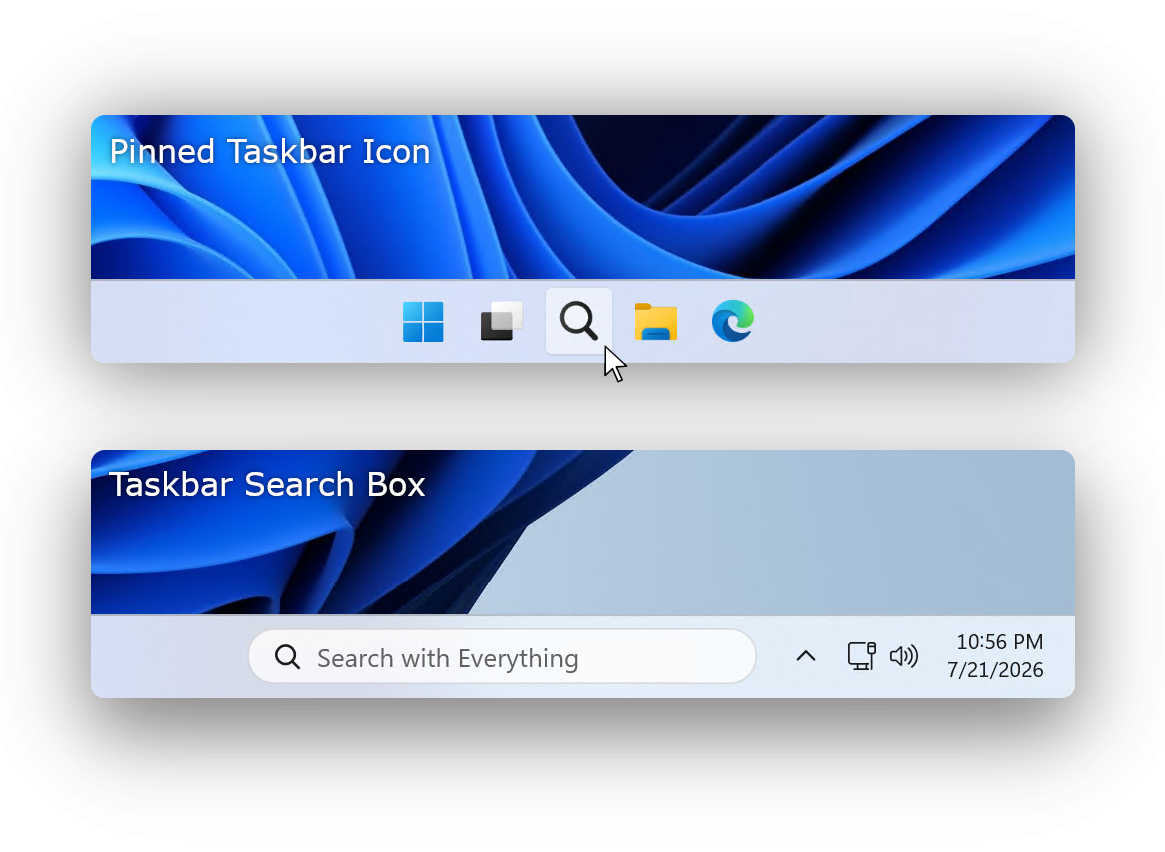
Choose either during setup or switch anytime under Settings → Taskbar integration. Additionally, on Windows 10 EverythingToolbar can be integrated as a native deskband.
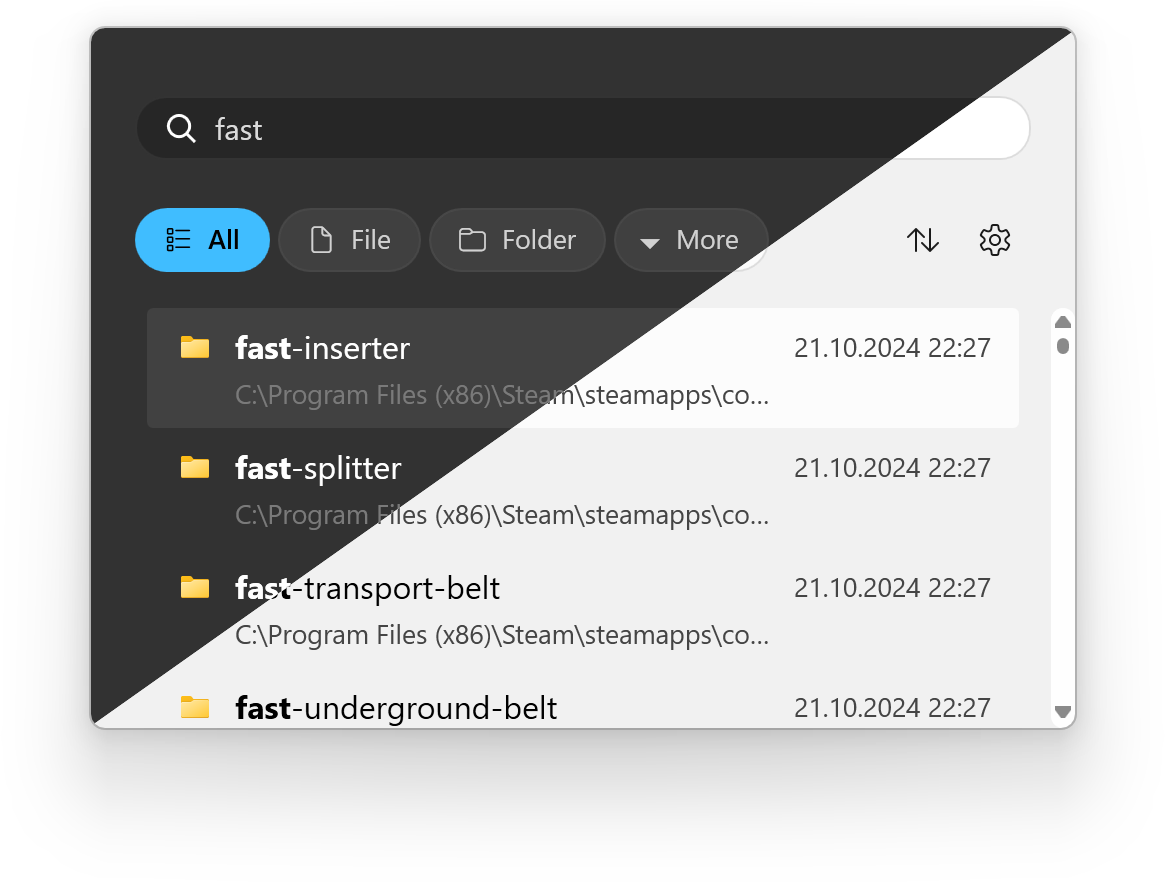
EverythingToolbar seamlessly blends into Windows 10 and 11, automatically adjusting to your system theme.
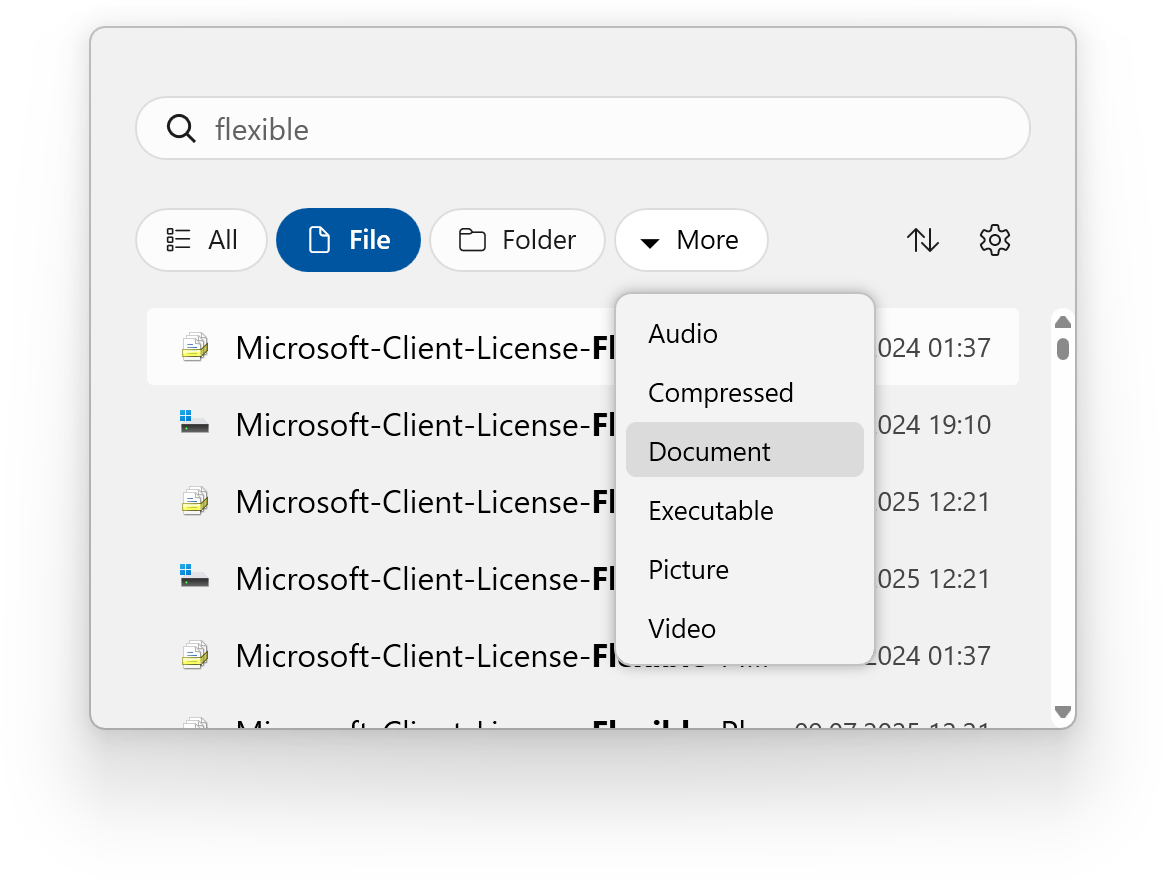
EverythingToolbar includes common search filters out of the box. For advanced users, it can synchronize with Everything's custom filters, giving you complete control over your search experience. Enable this feature by checking Use Everything filters in the EverythingToolbar's Filters settings.
Easily toggle search flags (match case, whole word, match path, and regex) to find your files with precision.

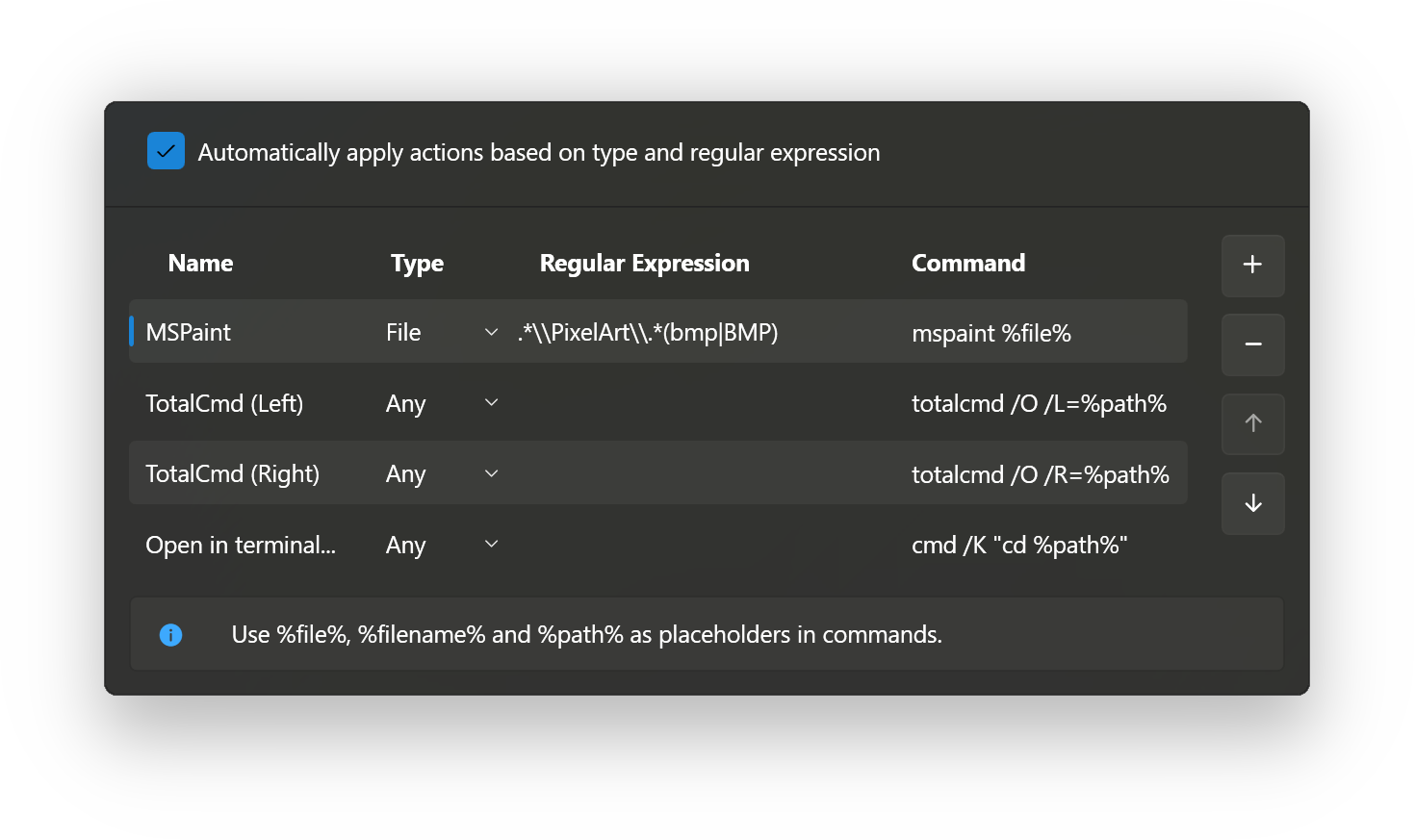
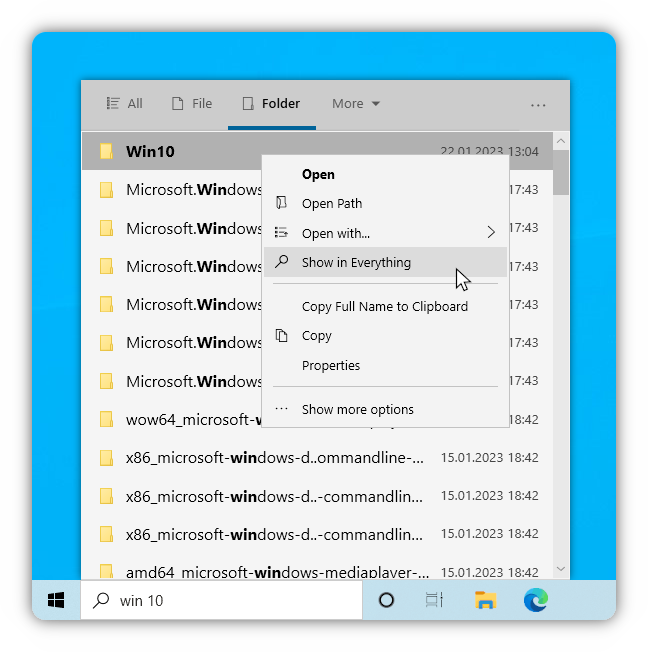
Create custom Open with actions by navigating to Settings → Custom actions. Enable Automatically apply rules based on condition to execute commands automatically based on file type and regular expressions. Leave the regex field empty to display the action only in the context menu.
EverythingToolbar works seamlessly on Windows 10 and Windows 11. On Windows 11 the taskbar search box embeds into the taskbar out of the box, and for full deskband support it integrates with tools like ExplorerPatcher and StartAllBack.
- Access EverythingToolbar instantly via customizable global shortcut
- Drag and drop files directly from search results
- Preview files with QuickLook or Seer integration
- Support for custom Everything instance names
| Shortcut | Function |
|---|---|
| ↑ / ↓ | Navigate search results |
| Ctrl + ↑ / ↓ | Navigate search history (if enabled) |